


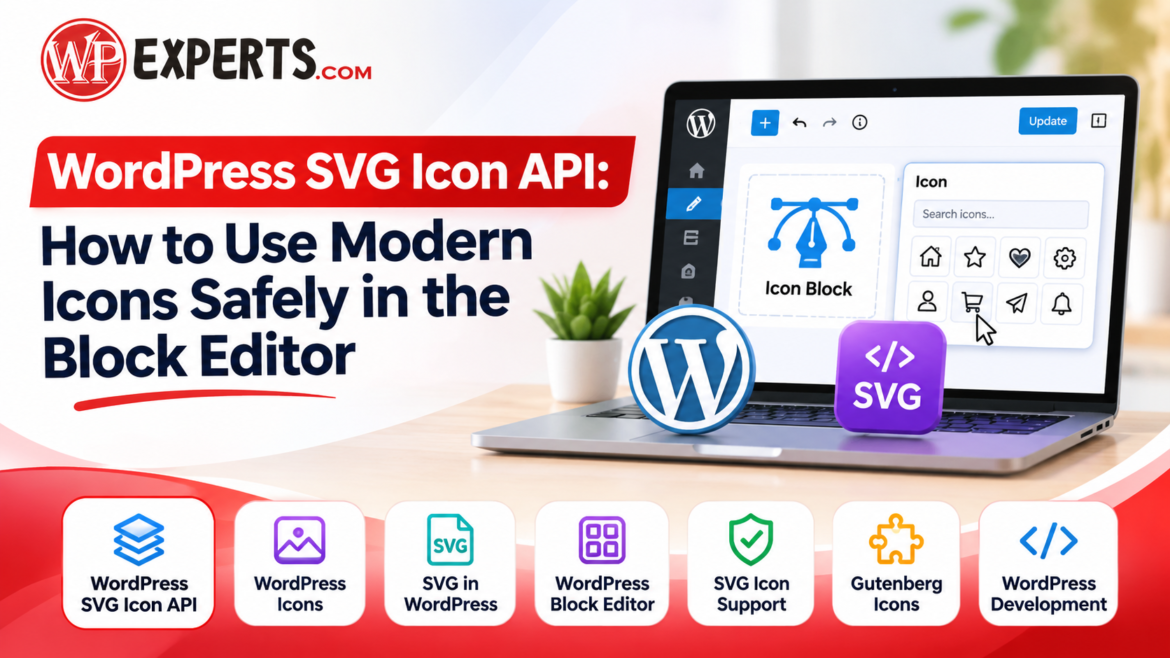
WordPress SVG Icon API: How to Use Modern Icons Safely in the Block Editor
https://www.indianwordpressexperts.com/wp-content/uploads/2026/11/WordPress-SVG-Icons-in-Block-Editor-1024x576.png 1024 576 admin admin https://secure.gravatar.com/avatar/ceb7f684f6c20730fc00f6a6d55ffd88?s=96&d=mm&r=gModern websites rely on visual elements to improve usability, communicate information, and create consistent user experiences. Icons are particularly useful because they help visitors understand navigation options, identify features, and interact with website content without reading lengthy descriptions. With the introduction of the WordPress SVG Icon API in WordPress 7.1, developers have a standardized way to register, organize, and display custom SVG icons across WordPress websites.
This development makes icon management more flexible for theme developers, plugin creators, and businesses building customized websites. However, implementing SVG icons requires attention to security, accessibility, performance, and compatibility. Understanding the available features and their limitations helps developers create reliable websites without introducing unnecessary risks.
What Is the WordPress SVG Icon API?
The WordPress SVG Icon API is a standardized system introduced in WordPress 7.1 that allows developers to register and render SVG icons through a centralized icon registry.
Previously, developers often relied on manually embedded SVG markup, third-party icon libraries, or custom theme functions. These approaches could create inconsistencies when managing icons across different website components.
The newer API provides a structured approach to icon management. Developers can register individual icons, organize them into collections, display them through PHP, and make them available in the editor.
Each icon belongs to a collection and uses a unique namespaced identifier. For example:
my-plugin/star
Here, my-plugin identifies the collection, while star represents the individual icon.
This naming system prevents conflicts between icons registered by different plugins or themes.
Why Does SVG Icon Support Matter in WordPress?
SVG stands for Scalable Vector Graphics. Unlike raster formats such as PNG and JPEG, SVG images use XML-based vector descriptions to represent shapes and paths.
This allows icons to maintain their visual quality when resized.
There are several advantages to using WordPress icons:
- Scalability: Icons remain sharp across mobile phones, tablets, and desktop screens.
- Smaller file sizes: Simple vector icons can be significantly lighter than equivalent image files.
- Customization: Developers can control dimensions, colors, and styling through CSS.
- Consistency: A shared icon system helps maintain visual uniformity throughout a website.
- Accessibility: Properly implemented icons can include meaningful labels for assistive technologies.
For websites with multiple interactive elements, SVG in WordPress provides a flexible alternative to managing separate image files.
How the API Works in WordPress 7.1
The new system introduces functions for registering collections, registering icons, removing registrations, and rendering icons.
1. Registering an icon collection
Before adding individual icons, developers need to register a collection. This establishes a namespace for the icons.
For example:
wp_register_icon_collection(
    'my-plugin',
    array(
        'label' => __( 'My Plugin Icons', 'my-plugin' ),
    )
);
The collection name becomes the prefix for every icon registered under it.
2. Registering a custom SVG icon
After creating the collection, developers can register an SVG icon using wp_register_icon().
wp_register_icon(
    'my-plugin/star',
    array(
        'label'   => __( 'Star', 'my-plugin' ),
        'content' => '<svg xmlns="http://www.w3.org/2000/svg" viewBox="0 0 24 24"><path fill="currentColor" d="M12 2l2.9 6.9 7.1.6-5.4 4.7 1.6 7L12 18l-6.2 3.2 1.6-7L2 9.5l7.1-.6z"/></svg>',
    )
);
The SVG can be supplied as inline content or through an absolute file path using the file_path argument. Developers should use one method, not both.
3. Rendering an icon with PHP
The wp_get_icon() function retrieves the markup of a registered icon.
echo wp_get_icon( 'my-plugin/star' );Developers can also customize the rendered output:
echo wp_get_icon(
    'my-plugin/star',
    array(
        'size'  => 32,
        'label' => __( 'Featured', 'my-plugin' ),
        'class' => 'custom-star-icon',
    )
);
The size parameter controls the Gutenberg icons’ dimensions, while the label provides an accessible description. Without a label, the icon is treated as decorative and hidden from screen readers.
Using Icons in the WordPress Block Editor
The WordPress block editor provides a visual environment for creating and managing website content through individual blocks.
The built-in Icon block allows users to insert SVG icons into posts, pages, templates, and template parts without manually writing HTML.
Developers can register custom icon collections so that supported custom icons become available alongside the built-in options in the Icon block picker.
The basic workflow involves:
- Open the WordPress dashboard.
- Navigate to the post, page, or template you want to edit.
- Open the block inserter using the plus (+) button.
- Search for the Icon block.
- Insert the block and select an available icon.
- Adjust its dimensions, alignment, and colors.
- Preview the result on desktop and mobile devices.
The API also supports programmatic rendering, making it useful for developers building custom themes and plugins.
Best Practices for Using SVG Icons Safely
Although SVG is useful, it requires careful implementation because SVG files can contain elements and attributes that introduce security risks.
Here are some important practices developers should follow.
1. Use trusted SVG sources
Avoid uploading SVG files from unknown websites or unverified sources. Malicious SVG files can contain potentially harmful scripts or external references.
Use trusted design resources and inspect custom SVG markup before implementation.
2. Follow WordPress sanitization rules
One important feature of the new registration system is that WordPress applies restrictions to SVG markup.
In WordPress 7.1, the registered icon sanitizer allows only specific elements, including <svg>, <path>, and <polygon>. Unsupported elements and attributes are removed.
Developers should therefore avoid assuming that every SVG feature will work automatically. For example, the current implementation does not support the stroke attribute in registered icons. Fill-based icons are a more suitable choice under these restrictions.
3. Maintain accessibility
Decorative icons should not create unnecessary announcements for screen readers. Functional icons should have meaningful accessible labels when their purpose is not otherwise clear.
Always provide descriptive text alongside important interface actions.
4. Optimize icon dimensions
Use appropriate viewBox values and avoid unnecessarily complex SVG paths. Lightweight markup helps reduce rendering overhead, particularly when a website contains numerous icons.
5. Avoid unnecessary external dependencies
A centralized icon registry can reduce the need to load multiple icon libraries. However, developers should evaluate existing theme and plugin dependencies before replacing them.
Common Implementation Mistakes of WordPress SVG Icon API to Avoid
Even with a standardized icon system, developers can encounter problems during implementation.
Common mistakes include:
- Registering an icon before its collection exists.
- Using duplicate icon identifiers.
- Providing invalid SVG markup.
- Forgetting to add a required icon label during registration.
- Using unsupported SVG elements or attributes.
- Assuming that CSS automatically controls the color of every rendered icon.
- Ignoring accessibility when adding functional icons.
Another important consideration is color inheritance. The Icon block applies styling that allows icons to follow the selected text color. However, standalone PHP-rendered icons may require custom CSS or fill="currentColor" on supported SVG shapes.
Testing icons in both the editor and the frontend is essential to identify rendering differences.
What Does This Mean for WordPress Developers?
The introduction of a standardized icon registration system creates new opportunities for developers working on custom websites, plugins, and themes.
Businesses can benefit from consistent iconography across service pages, feature sections, navigation menus, and interactive components. Developers can also build reusable icon collections instead of maintaining separate SVG markup throughout a project.
For professional website development, the key is to combine modern WordPress functionality with secure coding practices, accessible design, and performance optimization.
At Indian WordPress Experts, adopting modern WordPress development practices can help businesses build scalable, visually consistent, and user-friendly websites. Understanding new core features and their limitations is an important part of maintaining a reliable digital presence.
Conclusion
The WordPress SVG Icon API represents an important improvement in how developers manage and display custom icons. Its centralized registration system, collection-based organization, PHP rendering functionality, and integration with the block editor make icon management more structured.
However, developers should understand its sanitization restrictions, accessibility requirements, and rendering behavior before implementing it on production websites. By following secure development practices and testing icons across different devices, WordPress professionals can create modern interfaces that are visually appealing, accessible, and technically reliable.